HC-05 Bluetooth
Introduction
I bought this bluetooth module (HC-05 or BT400_B6) on ebay some weeks ago at very low price.
I decided to test it with an Android telephone.
This module is configured as Slave by default.
Required Components
- Bluetooth HC-05
- Android App Terminal Multi (Google Play Download)
Product Specifications
- Chipset CSR BC417143
- Bluetooth version V2.0+EDR
- Output power Class II
- Flash 8Mbit
- Power Supply 3.3V
- Size 26.9mm*13mm*2.2mm
Pin Description
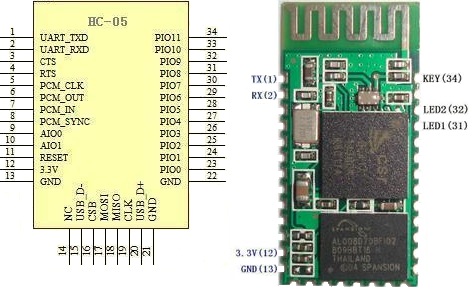
Connectivity
| HC05 pin | Mbed pin |
|---|---|
| 1 - Tx | P10 - Rx |
| 2 - Rx | P9 - Tx |
| 12 - 3.3V | Vout - 3.3V |
| 13 - GND | GND |
| 31 - PIO8 | -- |
| 32 - PIO9 | -- |
| 34 - PIO11 | GND or 3.3V |
PIO8 is used to control LED indicating the status. It will blink after power on.
PIO9 is used to control LED indicating paring. It will be steady on when paring is successful.
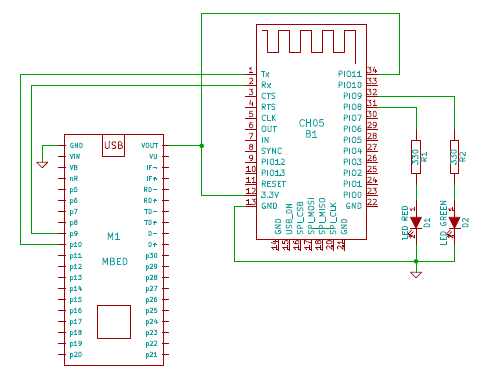
PIO11 is used to set this two mode: AT command mode (if the pin is connect to 3.3V) or Automatic binding transparent data mode (if the pin is connect to GND). The AT command mode is used to configure some characteristics of the device (for example the Master, Slave or Loopback modes).
Code for Transparent data mode
Import programHC05_Transparent_mode
Transparent data mode for Bluetooth HC05
Last commit 15 Aug 2014 by  Edoardo De Marchi
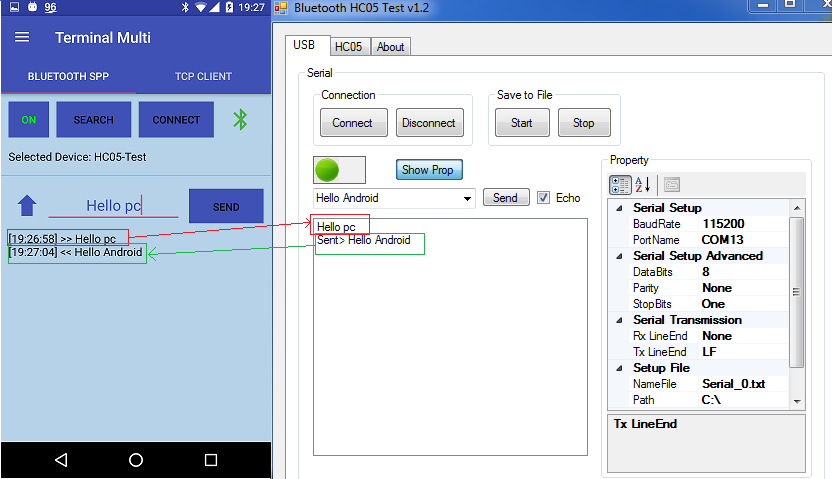
Example: Bluetooth communication between Pc and Android Phone
First you must turn on the Bluetooth on your Android phone.
Search the bluetooth device and pair with it (the password is 1234).
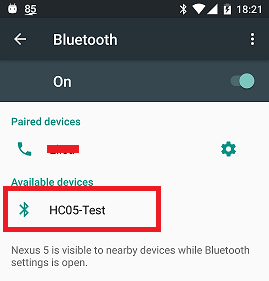
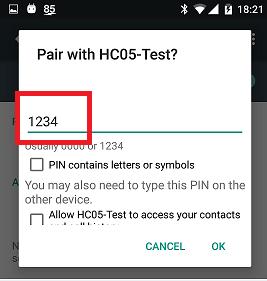
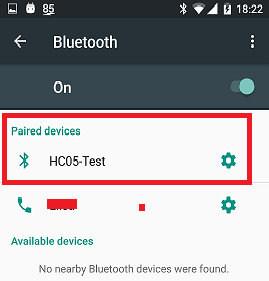
Then open "Terminal Multi" and press the button "SEARCH" for select the paired device (HC-05).
In the end press "CONNECT".
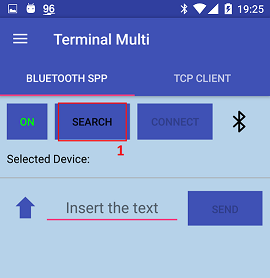
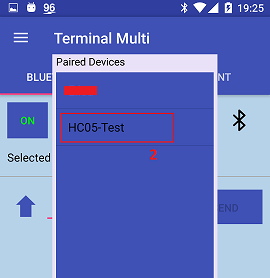
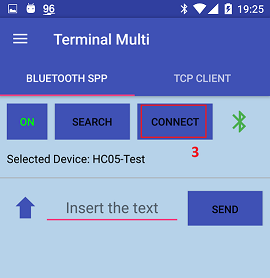
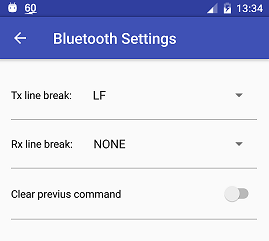
Bluetooth Settings
Output example
- - - - - - - - - - - - - - - - - - - - - - - - - - - - - - - - - - - - - - - - - - - -
AT command mode
In AT command mode you can configure and send control command to the HC05 device.
For enter into AT mode you must follow this steps:
- Power off the mbed
- Tie PIO11 to 3.3V (you can see it on the schematic below)
- Power on the mbed
- Open a serial monitor (Set the baud to 115200; choose "Both CR+LF" in the check box)
Schematic for AT command mode
Basic AT commands
| Command | Return | Parameter | Description |
|---|---|---|---|
| AT | OK | None | Test |
| AT+VERSION? | +VERSION:<Param> OK | Param: Version number | Get the soft version |
| AT+ORGL | OK | None | Restore default status |
| AT+ADDR? | +ADDR: <Param> OK | Param: Bluetooth address | Get module Bluetooth address |
| AT+NAME=<Param> | OK | Param: Bluetooth device name | Set device’s name |
| AT+NAME? | +NAME:<Param> OK | Param: Bluetooth device name | Inquire device’s name |
| AT+ROLE=<Param> | OK | Param:0=Slave role; 1=Master role; 2=Slave-Loop role | Set module role |
| AT+ ROLE? | + ROLE:<Param> | Param:0=Slave role; 1=Master role; 2=Slave-Loop role | Inquire module role |
| AT+UART=<Param>,<Param2>,<Param3> | OK | Param1: baud rate( bits/s); Param2: stop bit; Param3: parity bit | Set serial parameter |
| AT+ UART? | +UART=<Param>,<Param2>,<Param3> OK | Param1: baud rate( bits/s); Param2: stop bit; Param3: parity bit | Inquire serial parameter |
Is possible to set this three modes:
- Slave: Passive connection;
- Master: Inquire the near SPP Bluetooth slave device, build connection with it positively, and build up the transparent data transmission between master and slave device;
- Slave-Loop: Passive connection, receive the remote Bluetooth master device data and send it back to the master device.
Code for AT command mode
Important: The default setting of the serial port of HC05 is: baud 38400; 1stop bit and no parity.
Import programHC05_AT_mode
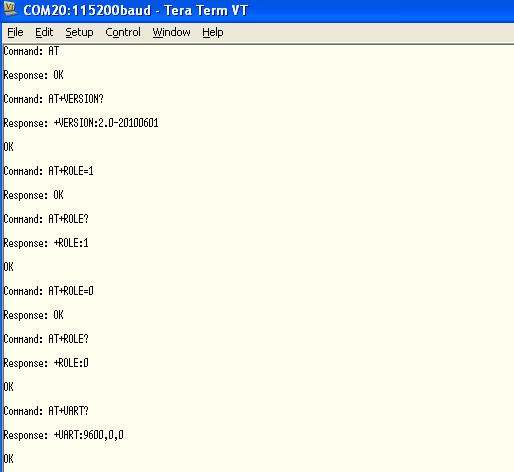
This program send an AT command to the HC05 module and shows the response into a terminal.
Last commit 12 Aug 2014 by Edoardo De Marchi
Output for AT command mode
- - - - - - - - - - - - - - - - - - - - - - - - - - - - - - - - - - - - - - - - - - - -
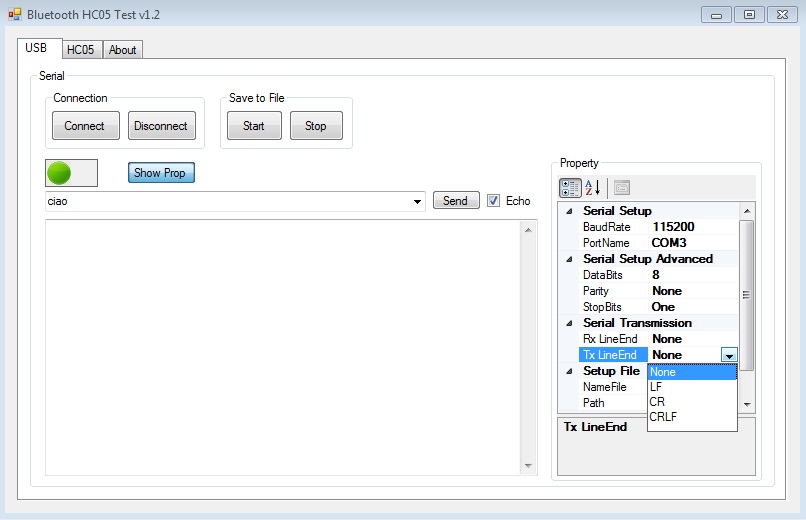
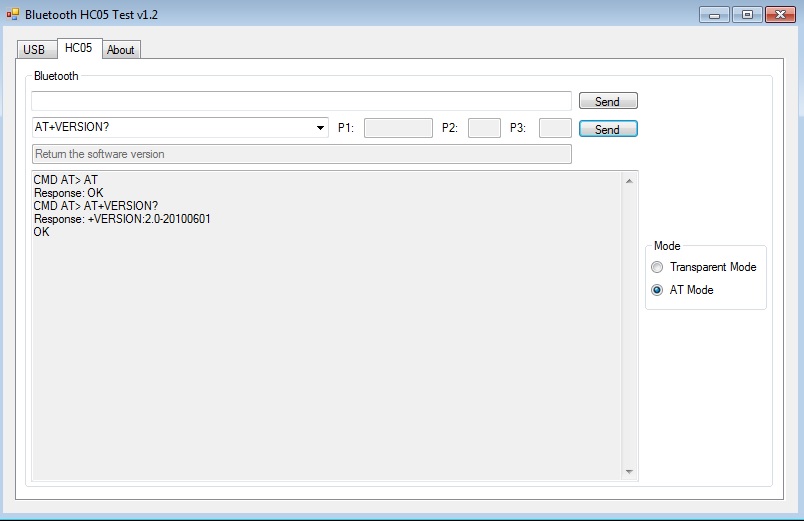
C# Test Program
You can download the program here: HC05 Test Software v1.2
Is required Microsoft .NET Framework 4.0 or above.
Screen:
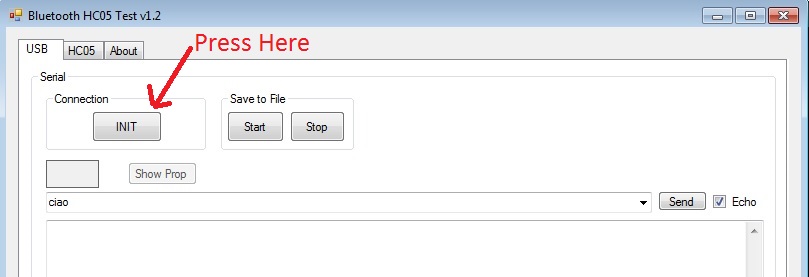
Select the correct COM Port and the BaudRate and press the "Connect" Button.
UPDATE:
U3: Added new Android Application (Terminal Multi)
U2: Updated HC05 Test Software and added new screens
U1: Updated the HC05 Test Software
16 comments on HC-05 Bluetooth:
Please log in to post comments.
Free Android APK HC05: https://play.google.com/store/apps/details?id=appinventor.ai_sandro_juca.BT4SanUSB_HC05