StarBoard Orange : "Application example No.1 : Enjoy mbed world with just one sensor!"
 Shinichiro Nakamura.
0
replies
GoogleChart,
sensor,
StarBoard,
twitter
Shinichiro Nakamura.
0
replies
GoogleChart,
sensor,
StarBoard,
twitter
Languages
日本語版はこちら : ☆ボードオレンジ:「活用事例1:センサ1つでこんなに楽しいmbedワールド!」
Overview
'StarBoard Orange' is a base board for mbed NXP LPC1768 designed by @logic_star.
The board includes
- microSD card connector
- USB (Host side)
- LAN(RJ-45)
- LCD
You can use these features for various applications.
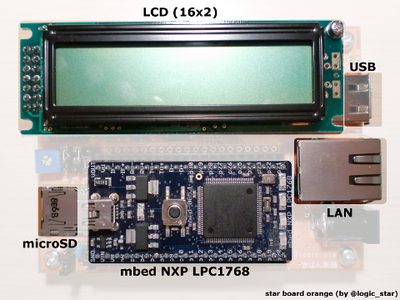
In this notebook, we will show you an interesting application with just one sensor.
Application
Overview
This application example reads a temperature from a sensor, and tweets it to Twitter via SuperTweet.Net.
There are many logging application with twitter in the world, these are just logging values.
But this application can create a chart with a data, using GoogleChart ( http://code.google.com/intl/ja/apis/chart/index.html )
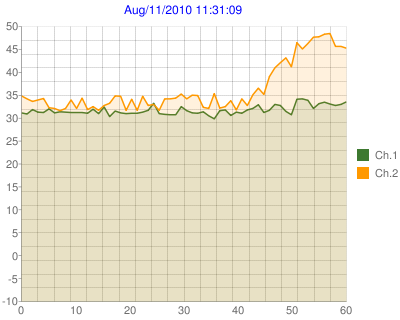
A following image is generated by this application example.Read a temperature from a sensor, Tweet to Twitter via SuperTweet, Click a URL on Twitter to get a chart.
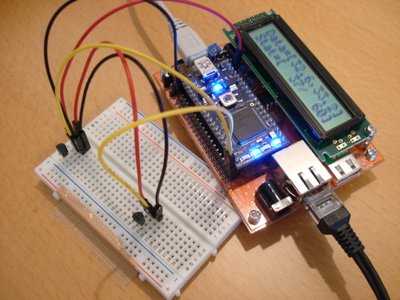
There are only 3 componets, mbed, StarBoard Orange, Temperature sensor in this solution. :)
Data flow diagram
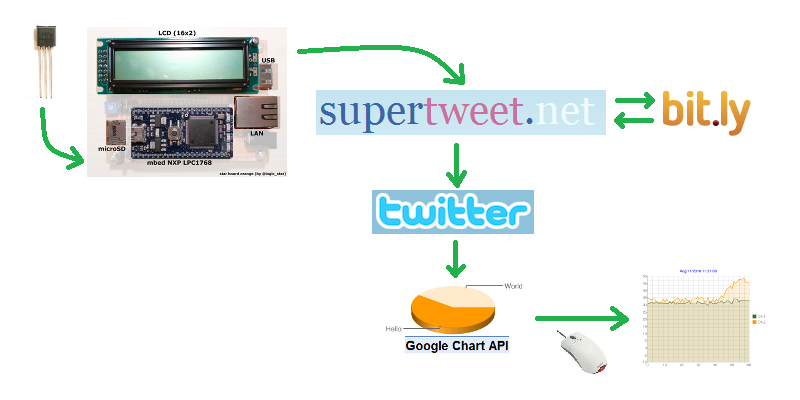
The data flow diagram is shown below.
- The application read a temperature from a sensor and create a chart from that results.
- SuperTweet.Net is a bridge API for Twitter. It provide "Basic Auth" after August 2010. (Basic Auth will no longer be supported with the Twitter API.)
- Long URL is cut down automatically by supertweet.net, using bit.ly.
- It is easy to view a chart, Just one click the URL on Twitter.
Setup
Necessary parts
- StarBoard Orange
- mbed NXP LPC1768
- Temperature sensor (LM60 or LM35 or MCP9700)
- microSD card (FAT32 formatted.)
Environments
- LAN (DHCP recommended)
- Account of Twitter ( http://twitter.com/ )
- Account of SuperTweet ( http://www.supertweet.net/ )
Programs
Import following program.
http://mbed.org/users/shintamainjp/programs/StarBoardOrangeExample1/latest
Preparation
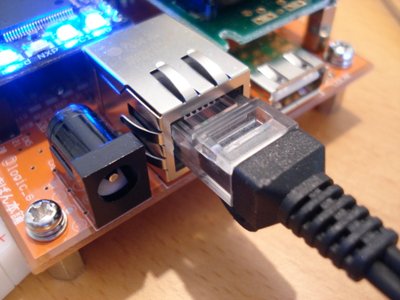
Network
Connect a network cable to RJ-45 connector.
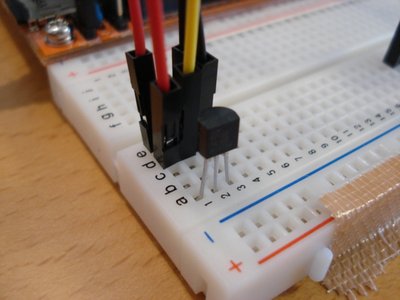
Sensor
Connect output pin of a sensor to p19 and p20.
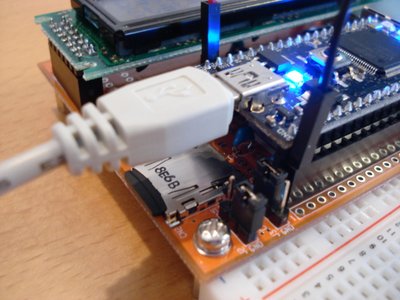
microSD card
Insert a microSD card.
Modify source for your environemnt
Account information for SuperTweet
At line 21 in main.cpp, There are information of account for SuperTweet.
Please replace them with your account information.
#define SUPERTWEET_ACCOUNT  "YourAccount"
#define SUPERTWEET_PASSWORD "YourPassword"
Network environment
The application uses DHCP configuration by the default.
However, You can choose static IP address setup.
At line 24 in main.cpp, There is a configuration.
#if 1
/*
 * Use "DHCP"
 */
EthernetNetIf eth;
#else
/*
 * Use "static IP address"
 *
 * -> IP
 * -> Subnet mask
 * -> Gateway
 * -> DNS
 */
EthernetNetIf eth(
    IpAddr(xxx,xxx,xxx,xxx),
    IpAddr(xxx,xxx,xxx,xxx),
    IpAddr(xxx,xxx,xxx,xxx),
    IpAddr(xxx,xxx,xxx,xxx));
#endif
Type of a sensor
The application uses MCP9700 by the default.
At line 47 in main.cpp, There are two definitions for sensors.
SensorMCP9700 sensor1(p20);
SensorMCP9700 sensor2(p19);
Replace them with type of your sensor...
SensorLM35 sensor1(p19);
SensorLM60 sensor1(p19);
And if you can't connect any sensor to mbed, then you can use dummy sensor objects.
In this case, insert following codes for the dummy sensor.
SensorDummy sensor1;
SensorDummy sensor2;
Output example of the dummy sensor
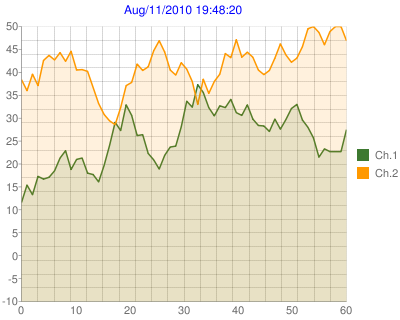
Configuration of RTC
A date and time inserted in a chart is from RTC on mbed.
At line 185 in main.cpp, There are setup codes for the RTC.
    /*
     * Set date and time. (If you want.)
     *
     * -> Year.
     * -> Month.
     * -> Day.
     * -> Hour.
     * -> Minutes.
     * -> Seconds.
     */
#if 0
    setDateTime(2012, 1, 1, 0, 0, 0);
#endif
If you want to set up clock, you can use these codes.
Start the program
Compile the application example on your compiler page, and run it on your mbed with your StarBoard Orange.
- The application initialize network and check a SD card after program started.
- The sampling interval is 1 sec. The application write the result to a SD card, and post them to Twitter after 60 samples. The application doesn't sample while recording and posting.
- The display of LED changes per a sample.
Appearance
Output examples on Twitter
Output examples on Twitter is below.
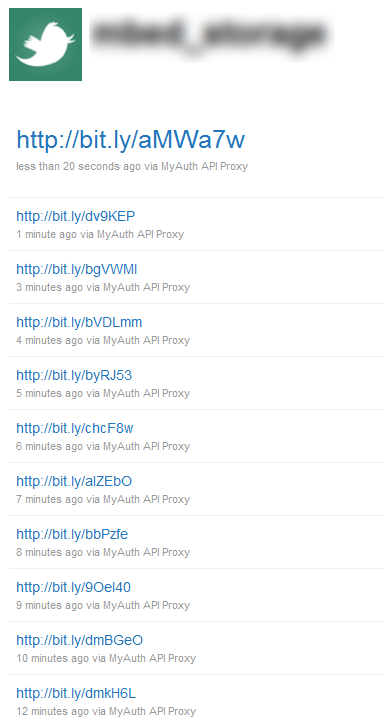
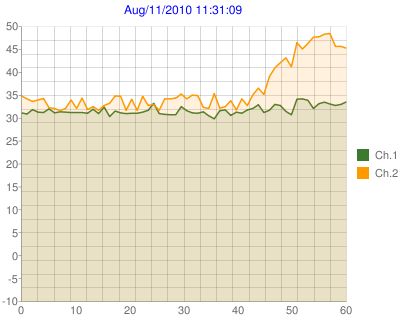
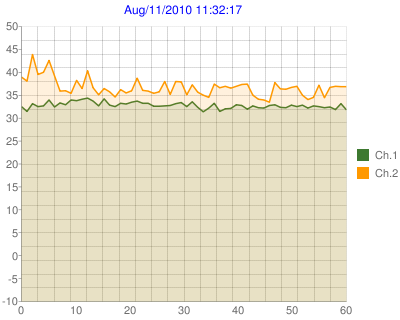
Output examples of charts
The chart will appear by just a click of a URL onTwitter.
It's more interesting than a list of values.
Summary
- It is easy to connect to web world with StarBoard Orange.
- In this application, I focused "How do we use it?" and introduced using example of the mbed.
- I designed GoogleChart classes and developped this example for this purpose.
- You can enjoy mbed world with only "StarBoard Orange". Please explore this world :)
References
Basic information
- StarBoard Orange: mbed評価用ベースボード(in Japanese)
- "Twitterアプリを動かしてみる ("Let's try Twitter" in Japanese)
- StarBoard Orange : "Soldering step by step"
- StarBoard Orange : "Expandability of StarBoard"
Services
Application examples
- StarBoard Orange : "Application example No.1 : Enjoy mbed world with just one sensor!"
- StarBoard Orange : "Application example No.2 : Add many buttons to your application with IR remote!"
- StarBoard Orange : "Application example No.3 : Drive a CHORO Q with wii nunchuck!"
Update history
| Version | Date | Description |
| 1.0.0 | 2010/08/11 | First version. |
| 1.0.1 | 2010/08/12 | Added dummy sensor. |
| 1.0.2 | 2010/08/14 | Added application examples toreferences. |
| 1.0.3 | 2010/08/16 | Fixed name of StarBoard Orange. |
| 1.0.4 | 2010/09/09 | Updated english words. |
| 1.0.5 | 2010/09/10 | Updated links of application examples. |
| - | - | - |
0 comments
You need to log in to post a comment
StarBoard Orange : "Application example No.1 : Enjoy mbed world with just one sensor!"
GoogleChart, sensor, StarBoard, twitter
Page owner: Shinichiro Nakamura
Created 10 Aug 2010.
Last updated 10 Sep 2010