Ethernet Testing
The documentation on Ethernet is somewhat lacking, so I'm putting together this page as a reference for getting started quickly with Ethernet.
You'll want to download my EthernetTester, which uses DHCP and serves a sample web page, as well diagnostic LEDs and output over serial.
EthernetTester
Rolf's page is a good reference: http://mbed.org/users/rolf/notebook/ethernet/
Much of this page is from his page.
Buying Parts
In addition to the mbed, you'll want to get the following, unless you are just cutting up an ethernet cable:
Sparkfun Part#
PRT-08534 RJ45 Ethernet MagJack
PRT-08790 RJ45 Ethernet MagJack Breakout
Digkey Part#
BC1160CT-ND CAP .10UF 50V CERAMIC +80/-20% (x2)
P150BACT-ND RES 150 OHM CARBON FILM 1/4W 5% (x2)
S1012E-36-ND CONN HEADER .100 SINGL STR 36POS
Getting Connected
Since the mbed conveniently has a Ethernet PHY, you only need to connect the RD+ RD- TD- and TD+ pins to either an Ethernet jack or cable. Ideally, you would get a jack with a transformer (magnetics) as this extends the range of cable you can use, protects the mbed from fluctuations, and is absolutely necessary if you are connecting to a PoE system (you'll fry your mbed otherwise!).
Using a cable
Strip a wire, a connect the following (assuming a straight, non-crossover cable):
Green = RD+
Green/White = RD-
Orange = TD+
Orange/White = TD-
Using a Magnetic Jack
You'll want, in addition to the magnetic jack, two decoupling capacitors, about 0.1uF, if you're ordering from DigiKey, part BC1160CT-ND will work perfect, at a whopping 6 cents a piece. They're useful for noise control, so you might as well order 10 (the minimum). If you don't have the capacitors, the jack will still work fine... you might have problems with some cable lengths.
I recommend getting the MagJack from SparkFun (PRT-08534), it's apparently the cheapest source, at about $2 with integrated status LEDs. If you do get one from SparkFun, you might as well pick up the breakout board for a dollar more. It'll probably save you lots of painful time trying to solder wires onto a jack, though it takes up a bit of space on the board.
Here's a quick schematic of how things need to be connected:
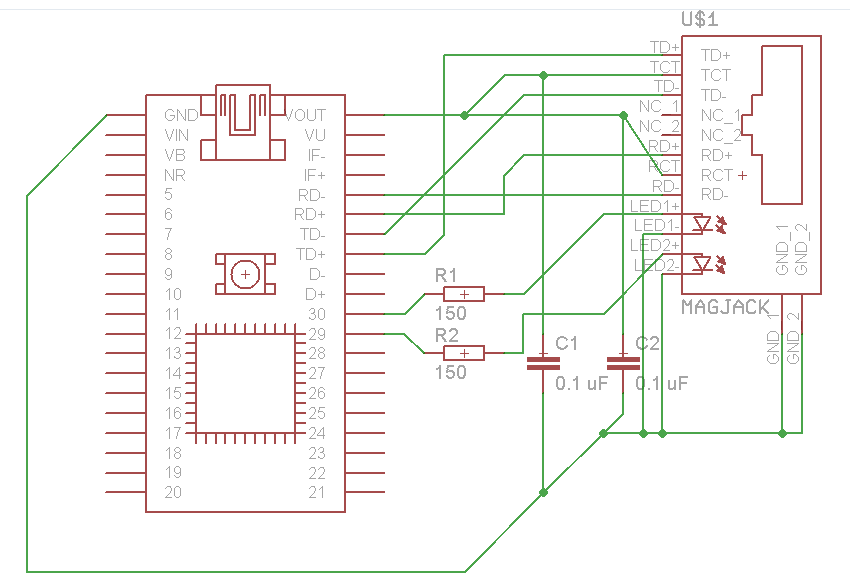
Connect the following on the SparkFun jack (for other jacks, see Rolf's page):
p1 = RD+
p2 = RD-
p7 = TD-
p8 = TD+
You also need to connect the transformers to +3.3V and also connect a decoupling capcitor between the transformer and ground.
The transformers are on:
p3 = RD0
p6 = TD0
So connect RD0 and TD0 to +3.3V, and also place one 0.1uF capacitor each between them and ground.
Status Lights
The EthernetTester program displays status on LED1-LED4, as well as on p29, p30. If you have a magnetic jack with status lights, connect them to the jack, otherwise, connect them to some indicator LEDs. The assignment of the LEDs are:
p29 = Activity (not used)
p30 = Link
LED0 = Stage 0 (Setting up lwip)
LED1 = Stage 1 (Waiting for DHCP)
LED2 = Stage 2 (Ready to serve pages)
LED3 = Serving an HTTP page
Be sure to use a current-limiting resistor (I used 150 ohms for the SparkFun MagJack).
Running the program
After you have everything wired up, open a serial console, and you should see some status text. After a few seconds, if everything worked out fine, you should get an IP address on the console. Type the IP address in your browser (i.e. http://192.168.1.100) and you should see a test page, with the RTC time, your hardware address, and the current IP address. You'll also see the requests from your browser in the serial console.
Thanks for posting this! It couldn't have come at a better time (for me!). This helps alot...
Any word on how to configure for static IP?
Thanks for posting this! It couldn't have come at a better time (for me!). This helps alot...
Any word on how to configure for static IP?
Yeah,
Edit the lines:
IP4_ADDR(&netmask, 255,255,255,255);
IP4_ADDR(&gateway, 0,0,0,0);
IP4_ADDR(&ipaddr, 0,0,0,0);
To your desired configuration.
Then, replace
dhcp_start(netif); // <-- Use DHCP
with
netif_set_up(netif);
Ahhh.. I missed the netif_set_up(netif);
Thanks a bunch!! This is a great help!!
Michael, if you don't mind my asking... How would one initiate a connection via a specific port to a specific IP address and send a small string to another device using this?
I'm not sure that you'll fry an mbed by connecting it to a PoE enabled system. From the little reading I've done on it PoE is only applied after a discovery process (http://www.gocsc.com/uploads/white_papers/59AC05CD861A40CC836B2F85B4DC2BAA.pdf indicates that PoE enabled devices check for the presence of a 25k resistor before applying 48V). Is there some part of the PoE system that I'm missing?
Thanks for posting the application and the tutorial!
I am trying this with the LPCExpresso base board which has the RJ45 installed. Something is not right here:
Starting Up...
Configuring device for DHCP...
Interface is up, local IP is 192.168.1.103
Starting Web Server...
Waiting for connection...
But I do not get a web page or any messages. Led4 is off, all others on. There were no errors posted; just a warning mem_sem was not used.
Any ideas as to where to look?
Hello Michael,
This is the best Ethernet tutorial.
Thank you,
Abraham
Hi,
I tried importing this and keep getting an svn error.
Is there something wrong or just a problem with mbed compiler?
Cheers,
Paul
Hi Paul,
Something is not happy there; we'll investigate.
FYI, Donatien did some good work on ethernet if you look in the new cookbook; that may be a better place to look for some newer and more stable examples.
Simon
Hi Paul,
This is now fixed!
Simon
#
09 Oct 2010 . Edited: 09 Oct 2010
Hello
I have the sparkfun breakout board for the Magjack and have connected it as described in the above information (good article), but I cannot seem to get the mbed to communicate on ethernet. The program compiles and loads without errors, but seems to hang with the second led on mbed flashing. Using wireshark to watch the ethernet, there is no dchp request being sent from mbed. Any suggestions as to where to look would be greatly appreciated.
Thanks
George
#
07 Feb 2011 . Edited: 07 Feb 2011
Had the same problem as Rick Drolet,
I've entered the given IP in my browser, but I just get a blank page. As Rick said, the first 3 leds are on, the 4th is off. Also, the ledLink is on, ledActivity is off.
Starting Web Server...
Waiting for connection...
Edit: I'm using Ubuntu10.10.
Edit2: Ah, fixed. Due to shortage of ethernet cables I had the PC I was browsing on, running on my HTC network, on 3G. Pretty obvious.
So, Rick, do you have your MBED and PC on the same network? In the same router or HUB or whatever? If so, you have to enter the given IP adress in your browser. And BAM:
Congratulations!
If you can see this page, your mbed is working properly.
mbed Configuration
mbed RTC time:Sun Jan 1 00:00:00 1900 (very up to date xD)
...
Cheers,
Melchior
Thank you for the hint! Seems so obvious...
Yes, same MBED and PC on the same network & Router. I really don't remember what exactly I was doing.
I need to remount my MBED development to give this a try.
#
22 Feb 2011 . Edited: 22 Feb 2011
Thanks, I needed this information, especially the static IP stuff!
#
28 Apr 2011 . Edited: 18 May 2011
Hello Melchior, Rick, and Michael Wei
mBed Ethernet Tester 1.0
Starting Up...
Configuring device for DHCP...
Interface is up, local IP is 192.168.1.128
Starting Web Server...
Waiting for connection...
Can you guide me how to configure the ip or how to setup? I'm using cross cable direct connect the Mbed to my PC and i'm using Wifi modem..I'm open my browser and type the IP (192.168.1.128), i do not get the web page. It shown
Oops! Google Chrome could not connect to 192.168.1.128
and LED1, LED2, and LED3 is turn ON. LED4 is OFF.
Thank you
Wen
#
19 May 2011 . Edited: 19 May 2011
Hello Dear All,
I did solved my problem. Following is there setting that we need to follow.

Have a nice day.
Bst Rgds,
Wen
Hi folks,
am connecting my mbed directly to the PC (apache websever installed) through ethernet,
I typed 'ipconfig' on command prompt it gives - 169.254.235.49 could this correct mbed ip address?
else how do I know the correct mbed IP address?
Pls help
Hi Micheal,
Something has gone badly wrong here - I have imported this program and when I try to compile it I get 695 errors!
What on Earth am I doing wrong???
Martin
Hi Micheal,
Something has gone badly wrong here - I have imported this program and when I try to compile it I get 695 errors!
What on Earth am I doing wrong???
Martin
I am facing the sane problem but getting half the number of errors.
Can someone please help out?
Hi michael i need your help. In the mbed ethernet official page the configuration of the pins for PRT-08534 are the follow:
1 TD+
2 TD-
3 3.3V
4 NC
5 NC
6 3.3V
7 RD+
8 RD-
As you can see there are diferent that the one you put here for the same connector. Im a little confuse. What is the correct configuration for this connector?, i want my mbed to simulate a pc that has a public ip (im using the breadboard adapter for this connector too)
Greetins please help me i dont want to damage the rd+rd-td+td- pins of the mbed connecting something wrong
Has anyone figure out why the imported program raises >600 errors whilst compiling as I’m having the same issues as shown above.
Help would be greatly appreciated?
#
21 Jan 2013 . Edited: 21 Jan 2013
Has anyone figure out why the imported program raises >600 errors whilst compiling as I’m having the same issues as shown above.
Help would be greatly appreciated?
I ran into the same problem. It is caused by folder names containing a dot. I sent a message to the mbed staff and posted the issue on http://mbed.org/forum/mbed/topic/83/?page=1#comment-20881. Will post back as soon as i get more info.
#
27 Dec 2013 . Edited: 27 Dec 2013
Hello I
tried to import this program but if i compile I'll get this
Error: Function "time(std::time_t
*)" conflicts with using-declaration of function
"std::time(std::time_t *)" in
"extras/mbed_00a04e5cd407/rtc.h", Line: 32, Col: 8
and this
Warning: The format string ends before this
argument in "lwip/examples/purehttpc/main.cpp", Line: 51, Col: 9
Can anybody help me with this?
#
27 Dec 2013 . Edited: 27 Dec 2013
You need to log in to post a comment


 Michael Wei
Thanks for posting this! It couldn't have come at a better time (for me!). This helps alot...
Any word on how to configure for static IP?