Guide to mbed Compiler on tablet device
This content relates to a deprecated version of Mbed
Mbed 2 is now deprecated. For the latest version please see the Mbed OS documentation.
The Compiler IDE already makes it easy to log in from any PC and carry on where you left off and we've pushed that portability one step further by adding touch support for tablet devices.
They are often considered consumer devices, but the mbed Compiler utilizes the touch control to deliver state-of-the-art editing, along with intuitive workspace management. The following guide explains the basics, the limitations and the workarounds to enable efficient workflow.
Note that, in the moment of writing, this guide is applicable to Android and iOS enabled tablet devices. We will update it once we add support for tablets based on other platforms (Surface, ChromeOS).
Browser of choice and limitations
This is the first and most important choice as it defines how the compiled program binaries are handled, how fast the mbed Compiler IDE performs and how it utilizes the screen space.
Android is liberal towards changing the default browser and open access to the file system. The default Android browser will not let you save the compiled binary files if you intend to connect the mbed board to the tablet. We recommend the Chrome and Dolphin browsers over the default one as both of them handle the download of binary files gracefully and additionally Dolphin can enable full screen of the mbed Compiler which will increase the usable screen space. The downloaded programs can then be moved to the mbed flash drive using a file manager, such as Astro or EStrong File Manager from the Google Play store.
iOS on other hand is very strict towards security and changing the default browser might not be the better choice as the default (Safari) browser receive JavaScript Nitro acceleration through the OS. In terms of usability, the Safari browser also allows adding the mbed Compiler as native home screen application (see the images below), which is not only handy shortcut, but also enables full screen mode.
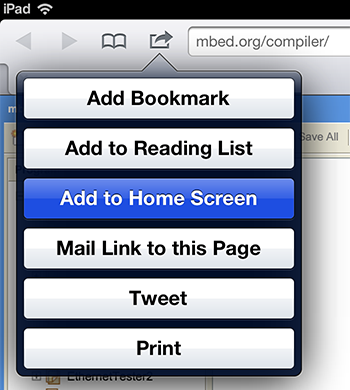
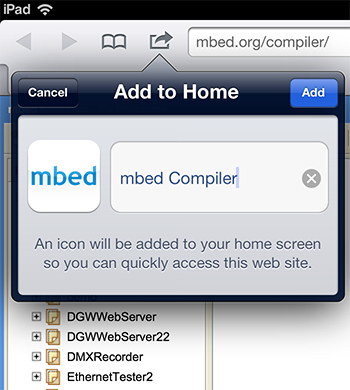
Note that due to iOS restrictions, the filesystem on the mbed board cannot be directly accessed (given that it's connected via iPad/iPhone USB adapter), which also means that one cannot save the compiled binary files to an mbed board.
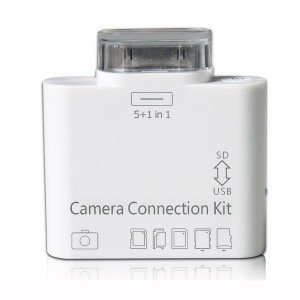
Given that you picked the browser that suits your taste let's jump on the next topic...
Touch control method
The mbed Compiler touch support consists of two very different control methods depending on functionality - editing and workspace management.
Editor
- Single Tap - Moves the cursor to the tapped position.
- Double Tap - Text selection on the tapped word and opens context menu.
- Triple Tap - Text selection on the tapped row and opens context menu.
- Tap-Hold - Opens the context menu.
- Tap-Drag - Text selection mode until the touch is released (and opens context menu).
Compiler IDE
- Single Tap - Equivalent to single mouse click.
- Double Tap - Equivalent to double mouse click.
- Tap-Hold - Equivalent to right click (context menu).
- Tap-Drag - Equivalent to mouse dragging.
Even though different, one will find them intuitive for the type of task they are designed for.
Editing input methods
While using touch control method feels comfortable and intuitive, many developers (including myself) don't find the virtual keyboard capable of long development cycles, mainly due to the lack of physical separation between the keyboard buttons and the lack of key click feedback, both leading to numerous typing errors. Also two fingers shortcuts (if they are present - not on iOS) could be tricky and problematic, not to mention the lack of tab key and copy/paste shortcuts - all of which greatly reduce the editing capabilities.
We've found several options - some of them valuable, others just a proof of concept.
Virtual Keyboard
The Android platform offers virtual keyboard skinning, keyboard gesturing and other input methods as part of the platform design. Each hardware vendor extends the Android default virtual keyboard with their own implementation(s), and if that's not enough, the Google Play store offers even more virtual keyboard solutions. While not perfect for the reasons listed above, there are various development-friendly layouts that will make the development easier and more enjoyable.
The iOS platform doesn't allow customized keyboard layouts, and just to make it worse, the most common special characters, such as tab, [](){}<>:;, and numbers are two or three taps away on the default keyboard layout or nowhere to be found.
A visual workaround for the iOS 5+ virtual keyboard is to split it using two fingers split gesture (see the image below).
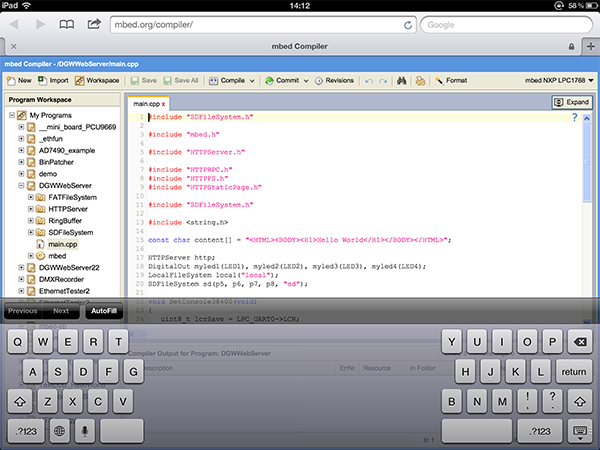
It will only reduce the size the of keyboard and make it semi-transparent, but won't extend the set of keys. The virtual keyboard can also be repositioned by dragging the right side of very bottom-right button (the horizontal stripes).
Cover/built-in keyboard
Some tablets, like the Asus Transformer are bundled with a nicely-designed, state-of-the-art, space-saving, tablet-protecting keyboard cover, which literally turns the tablet into very thin, lightweight, 10" laptop-alike device.
Others, like the iPad, could use hard covers like the Logitech Keyboard Case for an extra cost, which will enable the complete set of keys, including the all time favorite - tab and copy/paste.
Mini Bluetooth keyboard
There are various mini bluetooth keyboards, varying from very cheap to quite expensive ones, and while not popular for a daily use, they certainly feel like learning to type on a feature phone - once you get used to it you can type really fast.
Wired keyboard
Both Android and iOS based tablets support USB attached keyboard, given that the tablet is equipped with a normal USB port, either natively or through an adapter.
It makes little sense to use a wired keyboard though, as if one is carrying a wired keyboard, then why not use a laptop instead?!
Now that we tackled the control methods, let's jump on the next topic...
Workflow
Instead of writing pages and pages of text about the touch control features, we have prepared a walk-through video (best preview in full screen, 1080p).
Note that the actual performance is much better than shown in the video. The screen recording in 2048x1536 resolution took a large chunk of the tablet CPU performance!
Conclusion
It's no wonder why tablets have a market on their own - they are powerful lightweight portable devices, with intuitive and relatively accurate pointing precision, capable of delivering both platform-based and web-based applications - the key ingredient for the mbed Compiler to exist on a tablet ecosystem.
By nature they are consumer oriented devices, hence the lack of physical keyboard, which is not a blocker if you're planning to manage your workspace, publish, import and make minor source code modifications. If you're willing to fully unleash the development on a tablet though, then get a keyboard extension/bundle and save yourself the frustration from the virtual keyboard.
If you are planning to connect an mbed board then keep mind that the iOS platform is very restrictive towards file access, and even if you're able to download and save the program binary, it won't let you save it directly on the mbed board. This is somewhat unfortunate because in our experience the iOS based tablets are good fit for the task - the (retina) screen is in comfortable 4:3 format and the platform manages to deliver sleek performance with no slowdown or hitches - it simply works.
On the performance side, Android isn't too far behind iOS, especially after the Android 4.0.4 update, and most importantly it doesn't have the restrictions listed above, thus Android is the first platform fully capable of rapid prototyping - create in the mbed Compiler, experiment on an mbed board, share on the mbed website with the mbed community!.
And last but not least ...
Compatibility list
This isn't a compatibility list for the mbed Compiler, but for the mbed microcontrollers. Different mbed boards have different power consumption rating, as also different tablets can deliver different power to USB port. This compatibility list is for when an mbed board is powered by the tablet USB port only and there are no other consumers/devices attached to the mbed board itself.
Note that all mbed boards are designed to run on backup battery power with minimal USB power drain, thus making it possible to use the mbed board on a tablet that has limited USB power.
Legend:
 - the board is powered and accessible
 - the board isn't powered or hardware limitation occurs
- o - the filesystem is restricted by the platform
- w - the filesystem cannot be accessed due to insufficient power
- p - the filesystem can be accessed but errors may occur due to power fluctuations
- * - there is an issue or regression - see the comments below
- ? - untested
| Tablet | mbed NXP LPC11U24 | mbed NXP LPC1768 | mbed NXP LPC2368 |
|---|---|---|---|
| Apple iPad 1 | o? | wo | wo |
| Apple iPad 2/3 | o | wo | wo |
| Asus EEE Transformer TF101 | | * | ? |
| Motorola Xoom | | ? | ? |
Do you have a tablet not listed above? Do you want to contribute to the list? Drop us a note with details corresponding to the compatibility list and we will add it. Thanks in advance!